> ## Documentation Index
> Fetch the complete documentation index at: https://rapidreview.io/docs/llms.txt
> Use this file to discover all available pages before exploring further.
# Web app
> The paper map at rapidreview.io/nisa: the rail, the map, search, a paper, lists, settings, keyboard, mobile.
The web app is a map of the corpus with search, a paper panel, and your lists laid over it. You can browse and search without an account. Sign in — with Google, or an email and password — to save lists, share them, chat without limits, and mint API keys.
 ## The rail
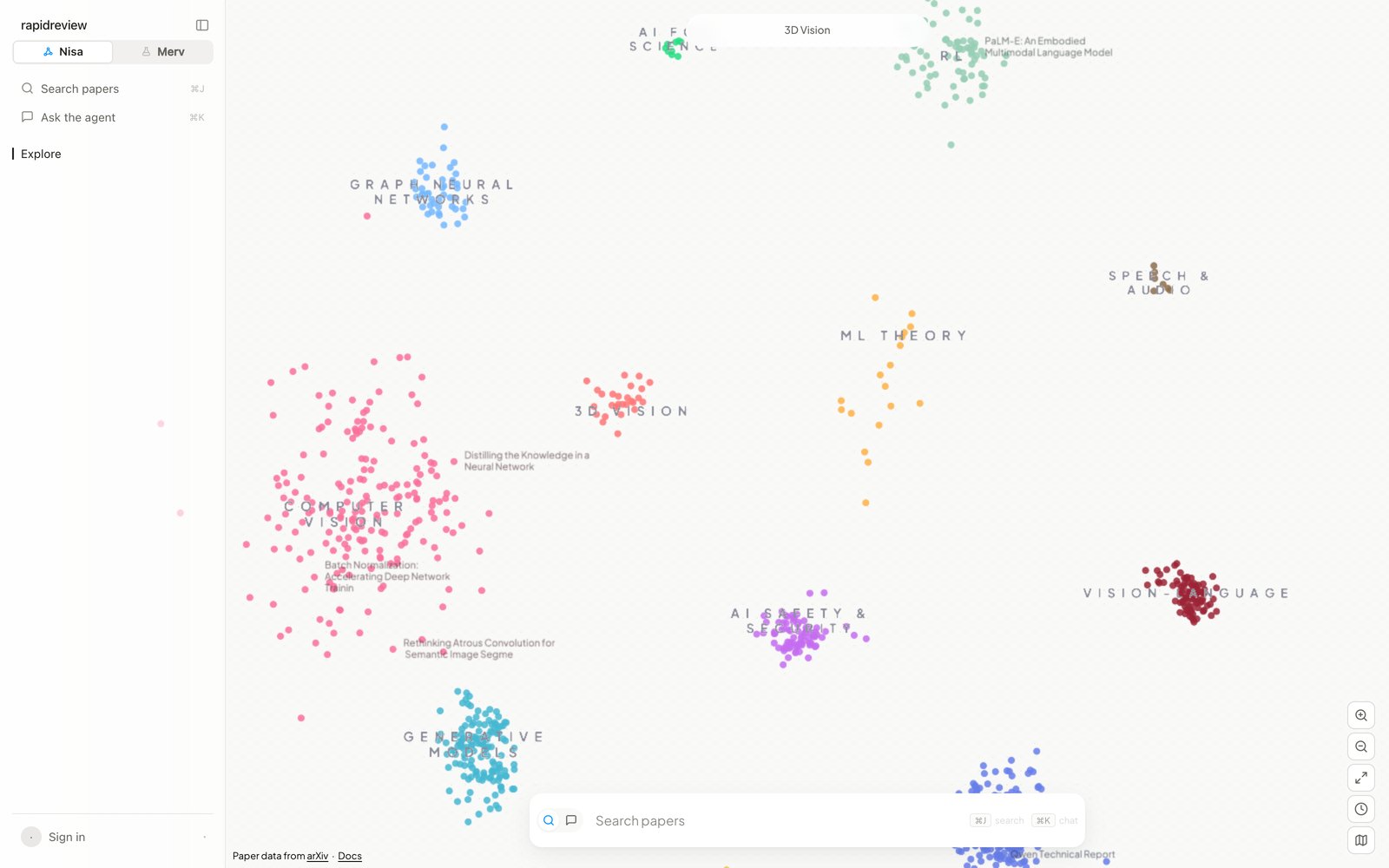
The rail on the left is desktop-only, and `⌘B` hides it. From top to bottom it holds the two commands, **Search papers** (`⌘J`) and **Ask the agent** (`⌘K`); **Explore**, which is the map; **Library**, your lists; **Chats**, your five most recent conversations; and your account chip at the bottom, which opens **Settings**, **Begin tour**, **Feedback**, **Docs**, and **Sign out**. The switch at the very top takes you to Merv on the same account.
## The map
Each dot is a paper, and nearby papers are about similar things. Colour marks the paper's community in the citation-and-similarity graph, so a paper sitting in one region with another region's colour bridges two areas. Region labels appear in two levels as you zoom — fields first, then subfields — and the pill at the top tells you where you are. The controls at the bottom right zoom, **Fit view** to the whole map, switch the **recency lens** on (the clock, which colours dots by publication year), and open a minimap.
| Action | Desktop | Mobile |
| ------------------- | ------------------------- | ---------------- |
| Zoom | Scroll, or the buttons | Pinch |
| Pan | Drag; or drag the minimap | Drag |
| Open a paper | Click a dot or its title | Tap |
| Jump to a region | Click its name | Tap it |
| Clear the selection | Click empty canvas | Tap empty canvas |
## Search
## The rail
The rail on the left is desktop-only, and `⌘B` hides it. From top to bottom it holds the two commands, **Search papers** (`⌘J`) and **Ask the agent** (`⌘K`); **Explore**, which is the map; **Library**, your lists; **Chats**, your five most recent conversations; and your account chip at the bottom, which opens **Settings**, **Begin tour**, **Feedback**, **Docs**, and **Sign out**. The switch at the very top takes you to Merv on the same account.
## The map
Each dot is a paper, and nearby papers are about similar things. Colour marks the paper's community in the citation-and-similarity graph, so a paper sitting in one region with another region's colour bridges two areas. Region labels appear in two levels as you zoom — fields first, then subfields — and the pill at the top tells you where you are. The controls at the bottom right zoom, **Fit view** to the whole map, switch the **recency lens** on (the clock, which colours dots by publication year), and open a minimap.
| Action | Desktop | Mobile |
| ------------------- | ------------------------- | ---------------- |
| Zoom | Scroll, or the buttons | Pinch |
| Pan | Drag; or drag the minimap | Drag |
| Open a paper | Click a dot or its title | Tap |
| Jump to a region | Click its name | Tap it |
| Clear the selection | Click empty canvas | Tap empty canvas |
## Search
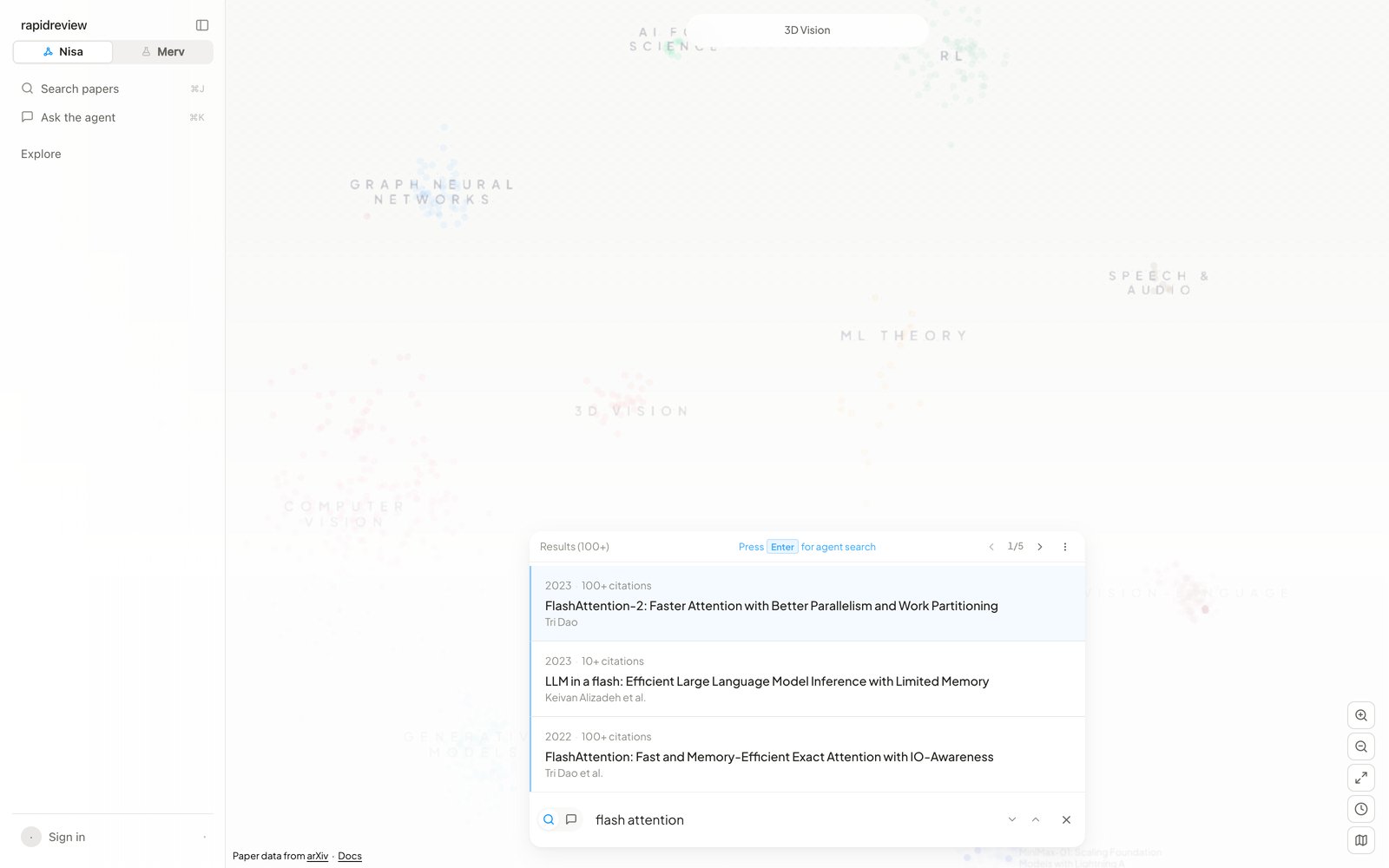 Type in the bar and results appear as you type, matched against title, abstract, and full text, with title matches ranked first. An arXiv id or URL opens that paper directly. Press **Enter** on a question and the search agent takes over: its steps stream in the panel and the papers it finds merge in above the keyword results, marked `Found by agent`. Any result set can be filtered by year range or author. Ghost-text autocomplete is off by default and can be switched on in Settings; `Tab` or `→` accepts a suggestion. Five agent searches are free without an account.
## A paper
Type in the bar and results appear as you type, matched against title, abstract, and full text, with title matches ranked first. An arXiv id or URL opens that paper directly. Press **Enter** on a question and the search agent takes over: its steps stream in the panel and the papers it finds merge in above the keyword results, marked `Found by agent`. Any result set can be filtered by year range or author. Ghost-text autocomplete is off by default and can be switched on in Settings; `Tab` or `→` accepts a suggestion. Five agent searches are free without an account.
## A paper
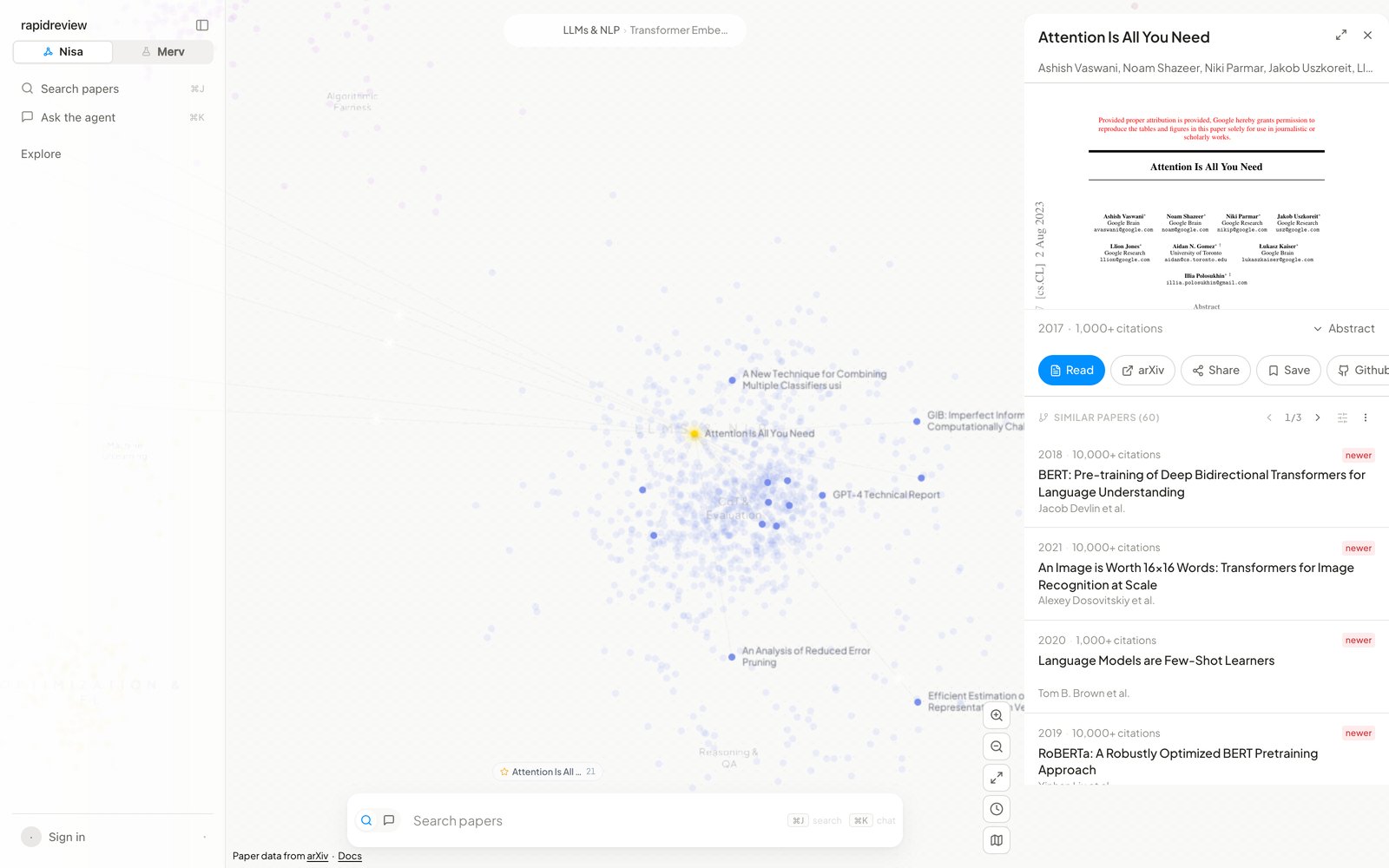 The panel shows the title, authors, a preview of the first page, the year and citation count, and the abstract. The actions are **Read**, which opens Nisa's own reader with the PDF beside the map; **arXiv**, which opens the paper there; **Share**, which copies a link; **Save**, which adds it to a list; and **Github**, when a repository is found. Below the actions, **Similar Papers** lists related work ranked by a hybrid of the citation network and content similarity — each row's tooltip says which — with filters and CSV export. The breadcrumb at the top retraces your path.
## Lists
**Save** on a paper opens **Save to…**, where you pick a list or name a new one. In a list's settings you can give it an icon and a description, and make it **Public**, so anyone with the link can view it. **Share with people…** invites collaborators by email. Members can add, remove, annotate, and rename, but only the owner can publish. Each paper in a list can carry a note. The ⋯ menu copies the link, exports CSV, and deletes the list (owner) or leaves it (member). These are the same lists `nisa lists` shows in the CLI; BibTeX export is CLI-only ([Exporting](/docs/nisa/guides/exporting)).
## Settings
Settings opens from the account chip and has five tabs. **General** holds two switches: the AI Agent, on by default, and Autocomplete, off by default. **Usage** is a token ledger for your searches and chats, broken down by day, by model (Sol, Terra, Luna), and by conversation. **Data & Privacy** clears your search history. **API Keys** creates and revokes keys; a key is shown once. **Account** shows your email, changes your password if you signed up with one, and signs you out — from this browser only, so Merv's session on the shared account stays.
## Keyboard
| Keys | Does |
| ----------------------- | ---------------------------------------------------------------------------- |
| `/` | Focus search |
| `⌘J` / `⌘K` | Search mode / chat mode; pressed again, collapse the panel or close the chat |
| `⌘B` | Toggle the rail |
| `Enter` · `Shift+Enter` | Run the agent or send · new line |
| `Tab` · `→` | Accept autocomplete, or the palette row |
| `↑` `↓` | Move through results |
| `Esc` | Clear search, clear the draft, close panels, leave fullscreen |
## Mobile
The panel shows the title, authors, a preview of the first page, the year and citation count, and the abstract. The actions are **Read**, which opens Nisa's own reader with the PDF beside the map; **arXiv**, which opens the paper there; **Share**, which copies a link; **Save**, which adds it to a list; and **Github**, when a repository is found. Below the actions, **Similar Papers** lists related work ranked by a hybrid of the citation network and content similarity — each row's tooltip says which — with filters and CSV export. The breadcrumb at the top retraces your path.
## Lists
**Save** on a paper opens **Save to…**, where you pick a list or name a new one. In a list's settings you can give it an icon and a description, and make it **Public**, so anyone with the link can view it. **Share with people…** invites collaborators by email. Members can add, remove, annotate, and rename, but only the owner can publish. Each paper in a list can carry a note. The ⋯ menu copies the link, exports CSV, and deletes the list (owner) or leaves it (member). These are the same lists `nisa lists` shows in the CLI; BibTeX export is CLI-only ([Exporting](/docs/nisa/guides/exporting)).
## Settings
Settings opens from the account chip and has five tabs. **General** holds two switches: the AI Agent, on by default, and Autocomplete, off by default. **Usage** is a token ledger for your searches and chats, broken down by day, by model (Sol, Terra, Luna), and by conversation. **Data & Privacy** clears your search history. **API Keys** creates and revokes keys; a key is shown once. **Account** shows your email, changes your password if you signed up with one, and signs you out — from this browser only, so Merv's session on the shared account stays.
## Keyboard
| Keys | Does |
| ----------------------- | ---------------------------------------------------------------------------- |
| `/` | Focus search |
| `⌘J` / `⌘K` | Search mode / chat mode; pressed again, collapse the panel or close the chat |
| `⌘B` | Toggle the rail |
| `Enter` · `Shift+Enter` | Run the agent or send · new line |
| `Tab` · `→` | Accept autocomplete, or the palette row |
| `↑` `↓` | Move through results |
| `Esc` | Clear search, clear the draft, close panels, leave fullscreen |
## Mobile
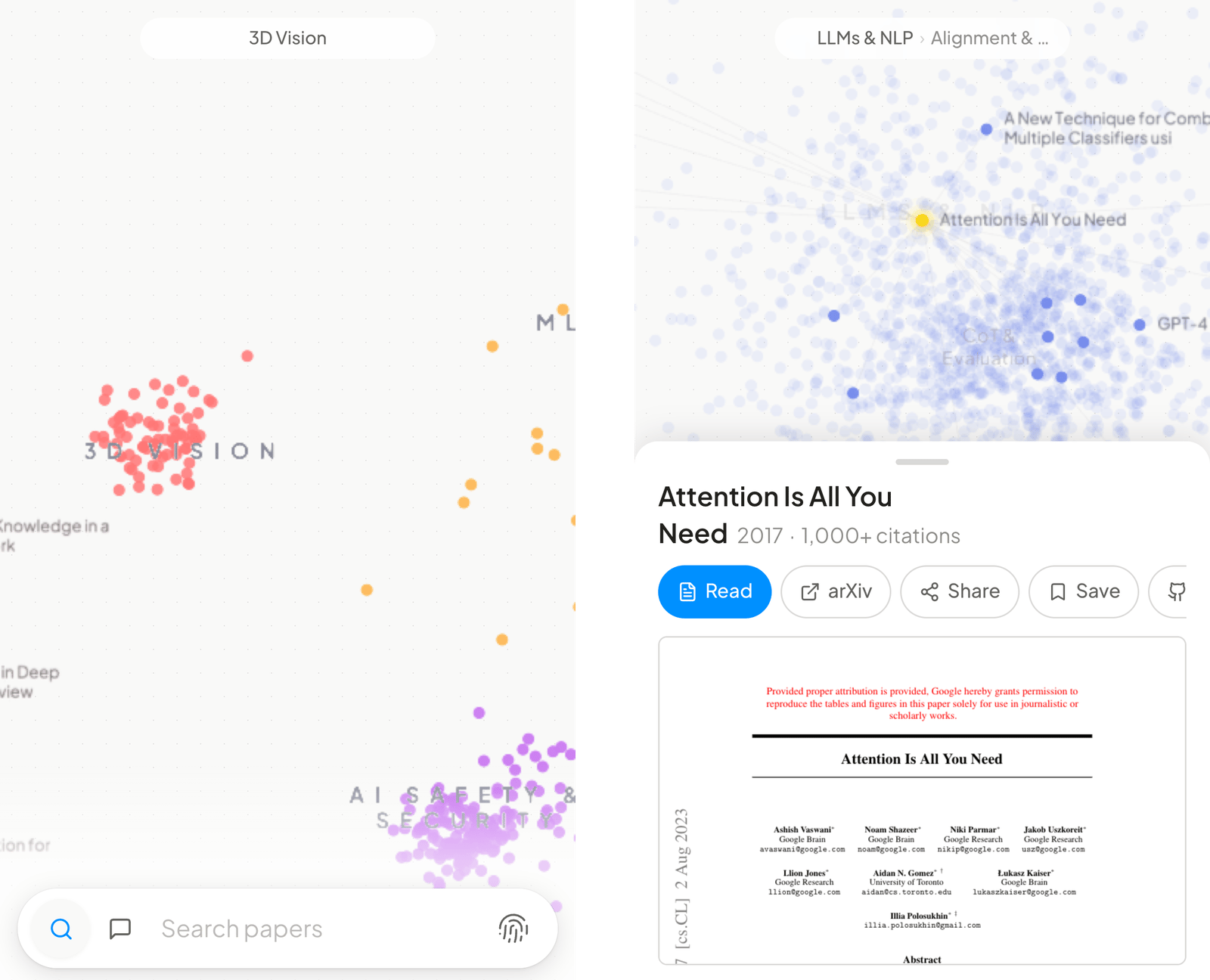 Pinch, drag, and tap. A paper opens in a sheet with three heights — title only, half, and full — and **Read** opens reading mode, which prefers arXiv's HTML rendering because it reflows for the phone, falls back to the PDF, and offers a toggle between them. The account menu sits in the collapsed bar.
Paper data comes from [arXiv](https://arxiv.org). Thank you to arXiv for use of its open access interoperability.
## Next steps
Sessions, mentions, research mode, sharing, and your local files.
The same corpus from your terminal and your agents.
Pinch, drag, and tap. A paper opens in a sheet with three heights — title only, half, and full — and **Read** opens reading mode, which prefers arXiv's HTML rendering because it reflows for the phone, falls back to the PDF, and offers a toggle between them. The account menu sits in the collapsed bar.
Paper data comes from [arXiv](https://arxiv.org). Thank you to arXiv for use of its open access interoperability.
## Next steps
Sessions, mentions, research mode, sharing, and your local files.
The same corpus from your terminal and your agents.